Official game artwork links to its source. Images load when online; local setup controls still work offline.
System setup / 01
Your hardware
Prefilled to match your setup
Confirm your monitor resolution and refresh rate. Your known PC details are already entered.
Choose the closest GPU chip; board partner brand does not change its graphics tier.
250 Hz is preselected for your monitor.
If you are unsure of resolution, check Windows Settings → System → Display. Use the monitor’s native resolution first.
System setup / 02
Choose your target
Recommended: balanced
Pick the trade-off that best matches how you play.
RTX 3070 baseline: start native, keep textures Normal, and use High anisotropic filtering. Lower settings only after checking for GPU pressure.
System setup / 03
Graphics settings
Settings → Graphics → Display / Quality / View
Display & rendering
Visibility & textures
Shadows & lighting
View / camera
System setup / 04
Chase the hitch
Your split-second freezes
Average FPS hides brief stutters. Compare the same match area and change one setting at a time.
First pass
Turn frame generation off; let shader preloading finish after updates.
Restart, then play a full match for a baseline.
Set VRAM Scale Target to 70–75 and texture streaming to Minimal (Off if offered and hitching continues).
If it persists, try Normal → Low textures and compare.
Isolate the cause
Close overlays or capture tools one at a time.
Check if it happens after updates, during fights or at regular intervals.
Watch VRAM, system memory, temperatures and frame-time spikes.
Verify game files if shader and memory checks do not explain it.
Frame generation is not a freeze fix. Your 80–240 FPS counter can look smoother, but generated frames do not update game input at that rate. For ranked, start Off. Test AMD FSR Frame Generation later for casual play only if native pacing is already stable and aiming still feels responsive.
Frame cap
With VRR/G-SYNC, try 3–5 FPS below refresh only if the PC holds it in busy fights. Stable lower FPS beats a high fluctuating number.
These are practical baselines, not universal pro settings. Keep familiar controls if they already work for you.
Optional / competitive controls
Mouse, binds & movement
Starting points, not rules
Mouse & sensitivity
Mouse DPI 800
A common baseline. Poll at 1000 Hz or the highest stable option.
In-game sensitivity 4.0 @ 800 DPI
Many players use a wide range. Hold it steady for a week; adjust in small 0.2–0.4 steps.
ADS sensitivity 1.00 / Relative
Keep the starting setup simple until tracking feels consistent.
Acceleration / smoothing Off
Predictable mouse input is easier to repeat.
Match sensitivity 4 × 800 ÷ DPI
At 1600 DPI, the rough equivalent is about 2.0.
KBM keybind starting point
Move / jump WASD / Space
Keep movement in the familiar home position.
Crouch / prone C / Left Ctrl
Change if it strains or causes accidental presses.
Sprint / reload Left Shift / R
Keep frequent actions within reach.
Interact / plates F / E
Choose binds you can use while maintaining movement.
Tactical / lethal Mouse 4 / Wheel click
Swap to match your mouse grip.
Field upgrade / ping X / Mouse 5
Keep communication easy to reach.
Movement options to try
Mantle assist Off
Can prevent accidental climbs.
Armor plate behavior Apply all
Use if available and comfortable.
Parachute Manual if preferred
Practice before relying on it in ranked.
Settings support consistency; deliberate practice, centering and reviewing mistakes matter more than copying a streamer.
A clearer audio starting point
Audio mixTreyarch Mix · compare Headphones
Mix preference depends on your headset and current game audio. Try one mix in the same area before switching.
Important volumesEffects 100 · Music 0 · Dialogue 40–50
Set master volume to a comfortable level. Lower music and cinematic music to hear gameplay without pushing headphone volume.
Clean signalMono Off · correct output device
Start Enhanced Headphone Mode Off; enable tinnitus reduction if available. Avoid stacking multiple surround/EQ effects at first.
These are a comparison baseline, not a guarantee of louder footsteps. Keep listening volume comfortable; audio mixes are headset-dependent.
Player profiles worth studying
These are real player/creator portraits and source-linked profile snapshots. Pro settings vary by game version, role and preference; the listed dates matter.
Metaphor
Warzone creator · KBM
Setup.gg’s linked KBM snapshot is dated Jan 2025 (2,000 DPI / 2.85 sens). Useful as an example of how individual settings vary—not a current universal target.
Setup.gg’s recorded Warzone values are an older Dec 2024 snapshot (1,600 DPI / 2.50 sens). Treat the numbers as historical; the profile links explain the context.
Longtime Warzone competitor. Setup.gg currently marks the old exact settings record under review, so this guide does not guess his current sensitivity or binds.
Player photographs: Setup.gg / Metaphor; One Esports / Symfuhny; Dexerto / HusKerrs; Liquipedia / JoeWo. Linked photos and profiles are credited at each card.
Setup complete
Ready for the next drop.
Start balanced, keep frame generation off while checking the freeze, and change one setting per match.
Quick baseline: Native resolution · 250 Hz · V-Sync Off · Reflex On · VRAM 70–75 · Normal textures · Anisotropic High · Blur Off · FSR Frame Generation Off for ranked.
Images and web fonts need internet. The guide works locally and keeps your hardware details in this browser.

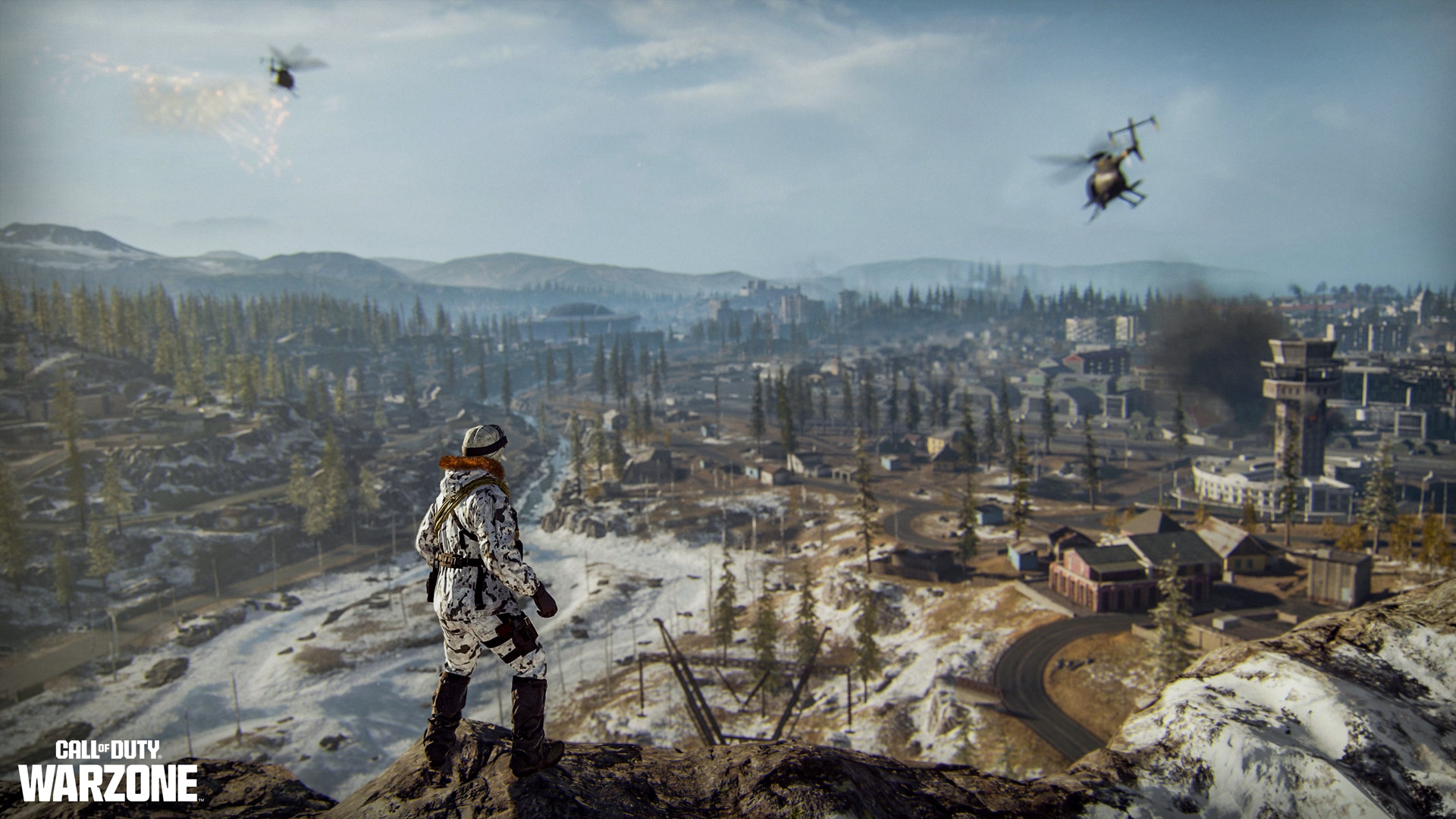 Warzone / Verdansk
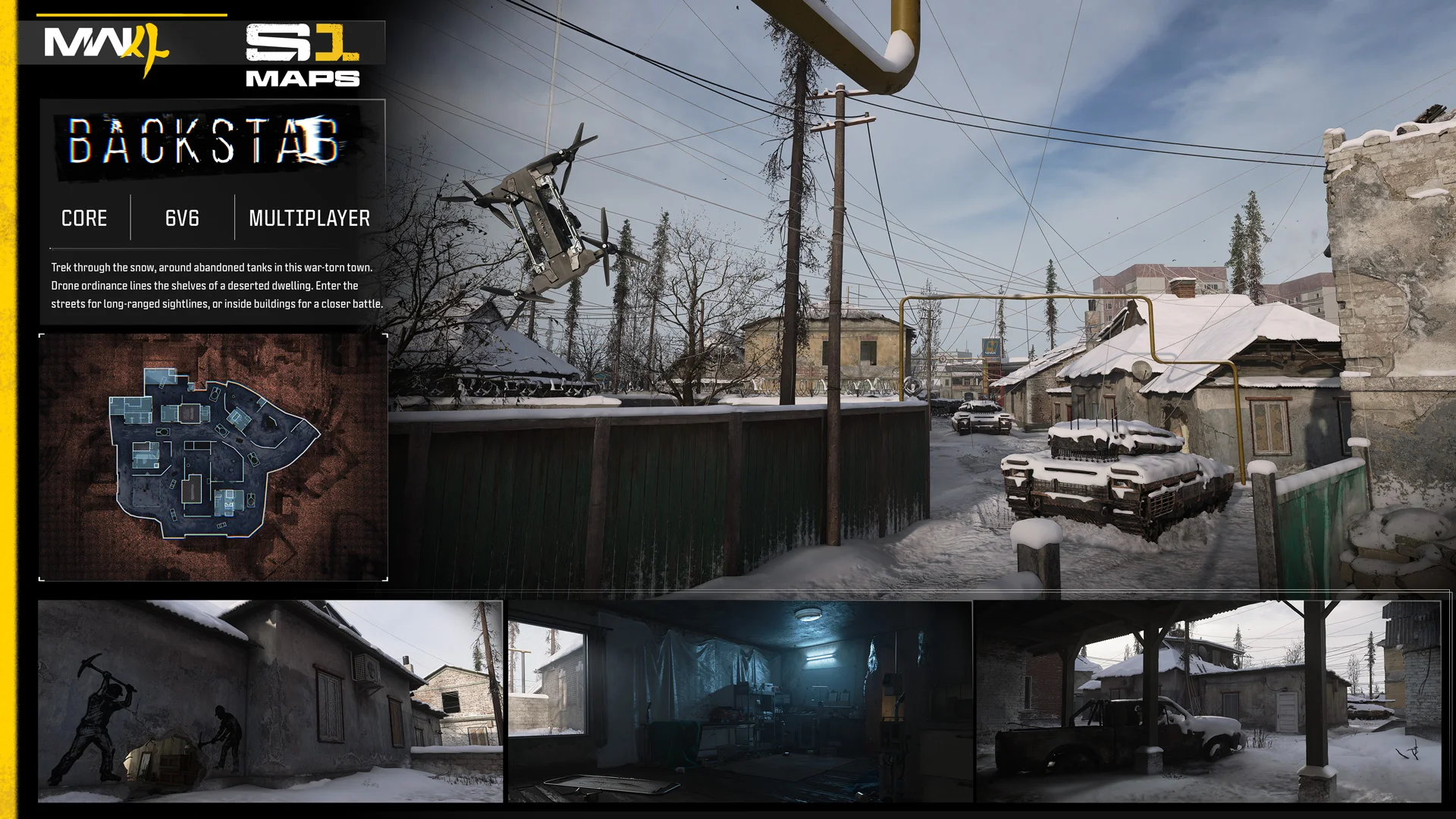 Season 01 / Backstab
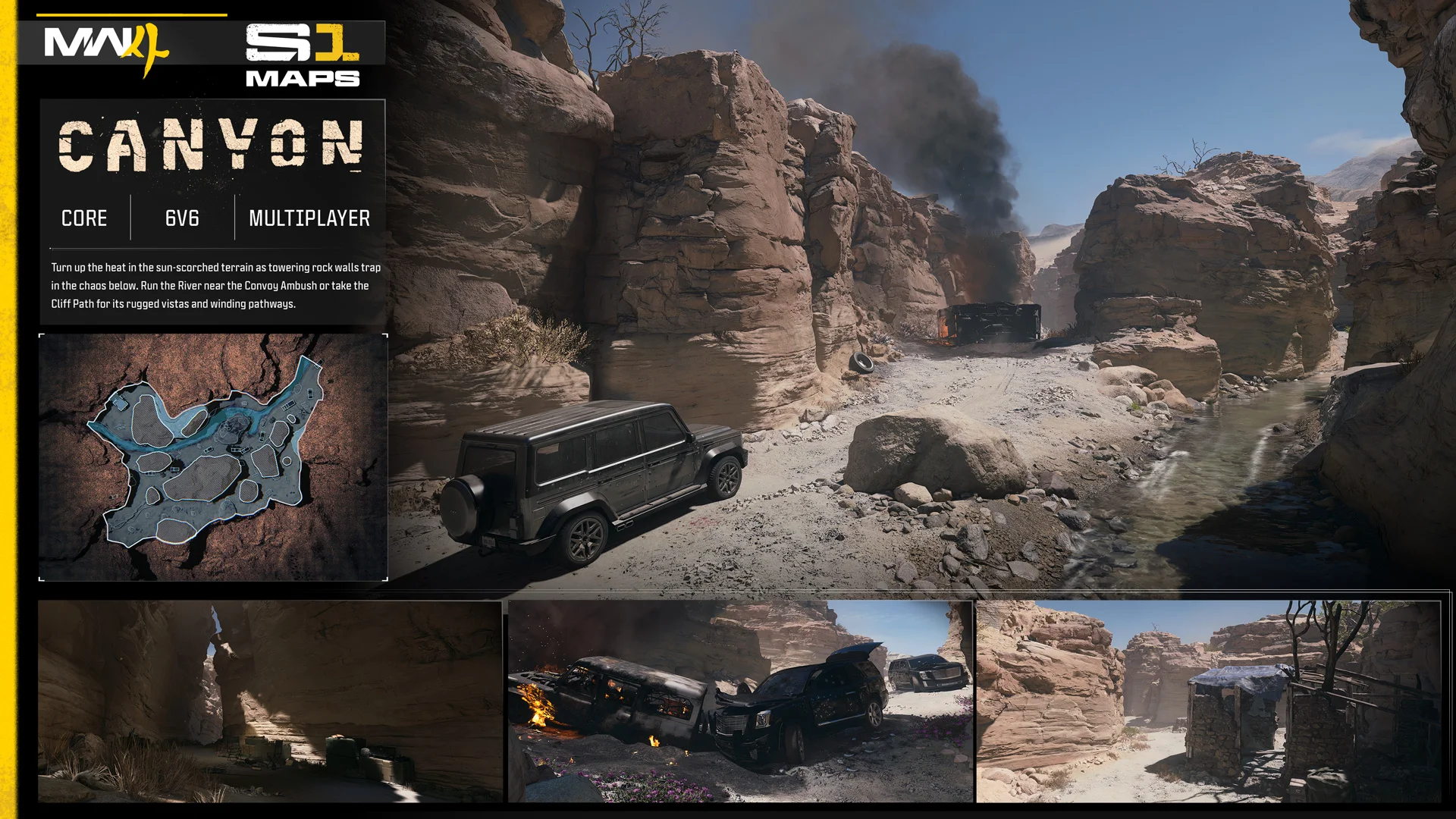 Season 01 / Canyon
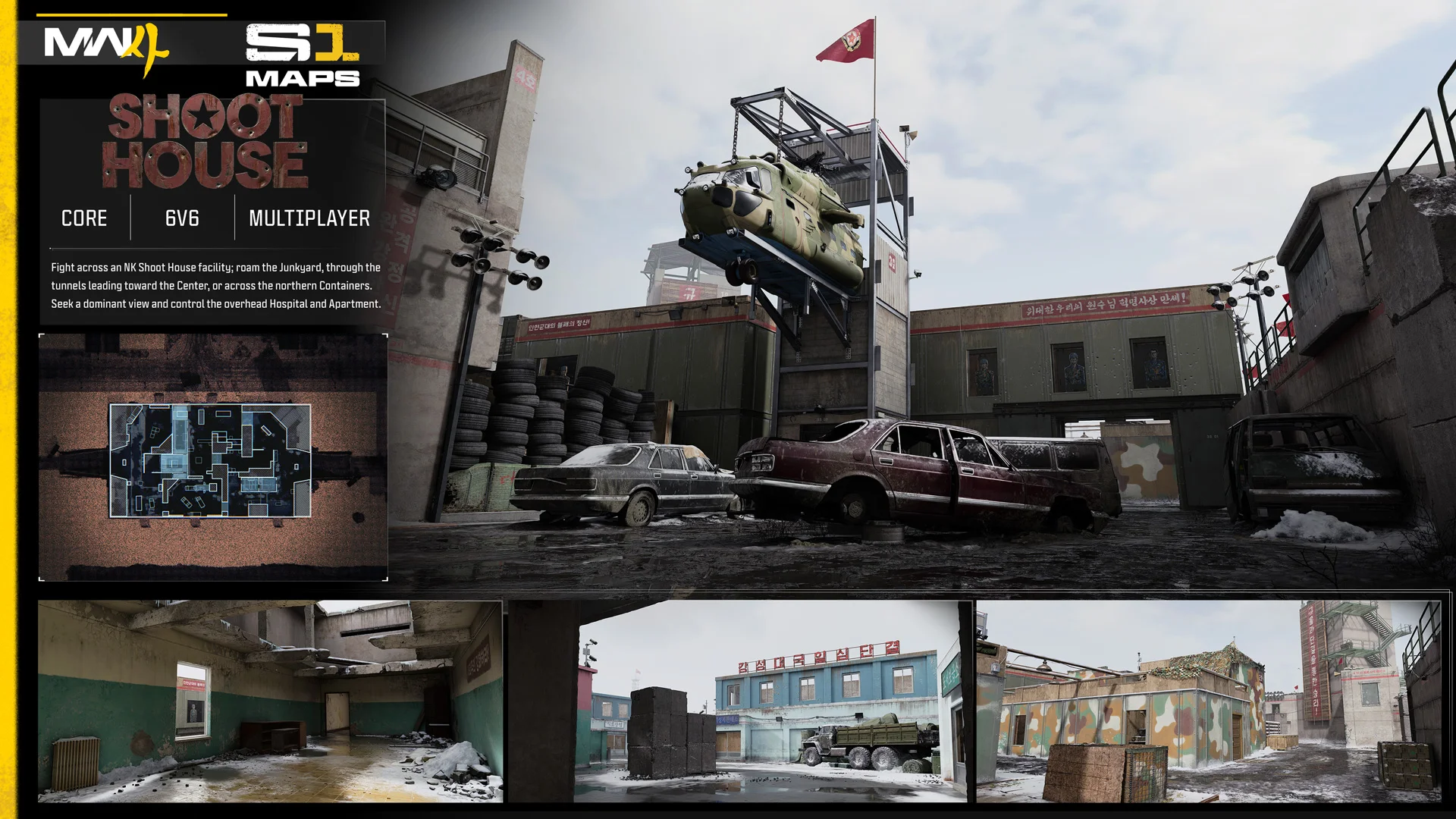 Season 01 / Shoot House
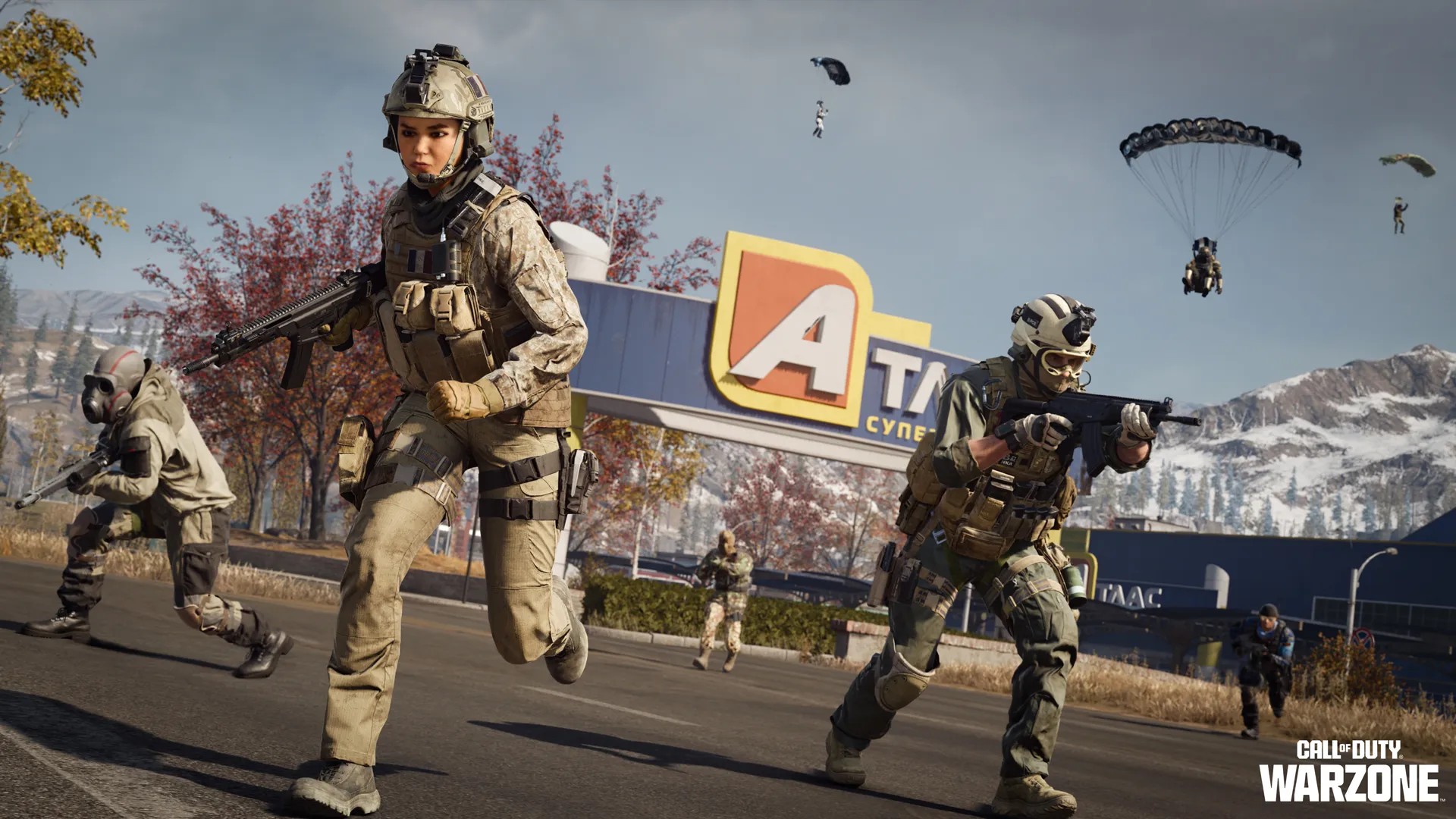 Field intel / Drop zone


